Screenshot Studio · Free tool
Make App Store screenshots that get downloads
Drop in a plain shot, tilt it in real 3D with camera-true focus blur, dress it with frames, glow and a background, then export a crisp PNG — for App Store listings, website mockups, or anywhere a flat screenshot needs to look designed.
Looks to start from
Every tile is a real look from the tool — click one and it opens live, set up exactly like the picture.
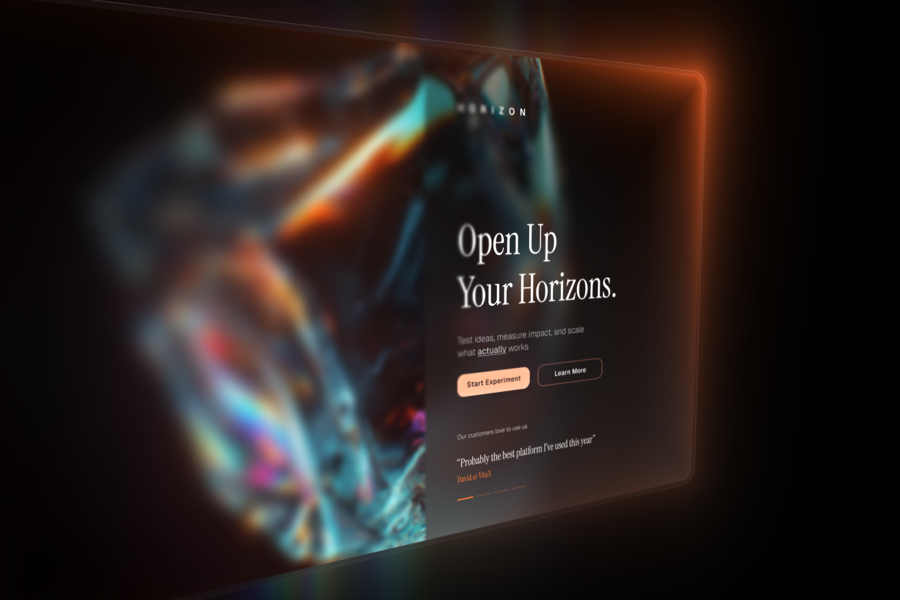 Planet glassTilted over a planet, in a dark glass frame with a warm edge glowing in.
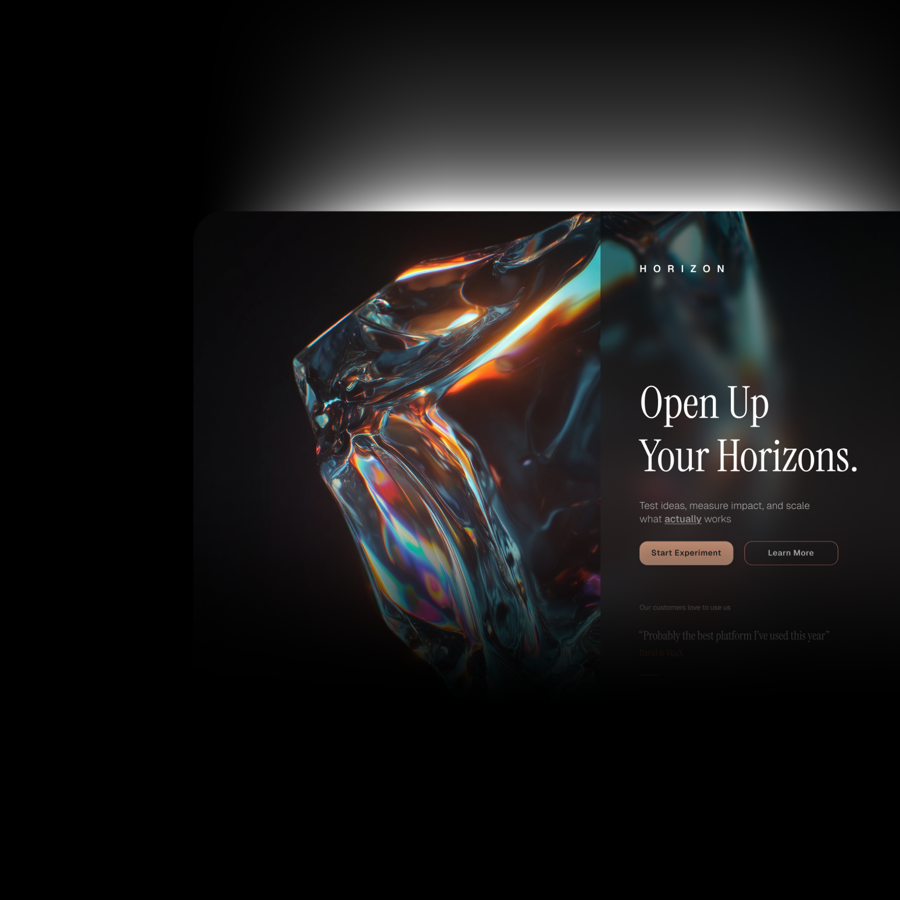 Orb fadeSquare, the shot fading into a bright white edge over a dark orb.
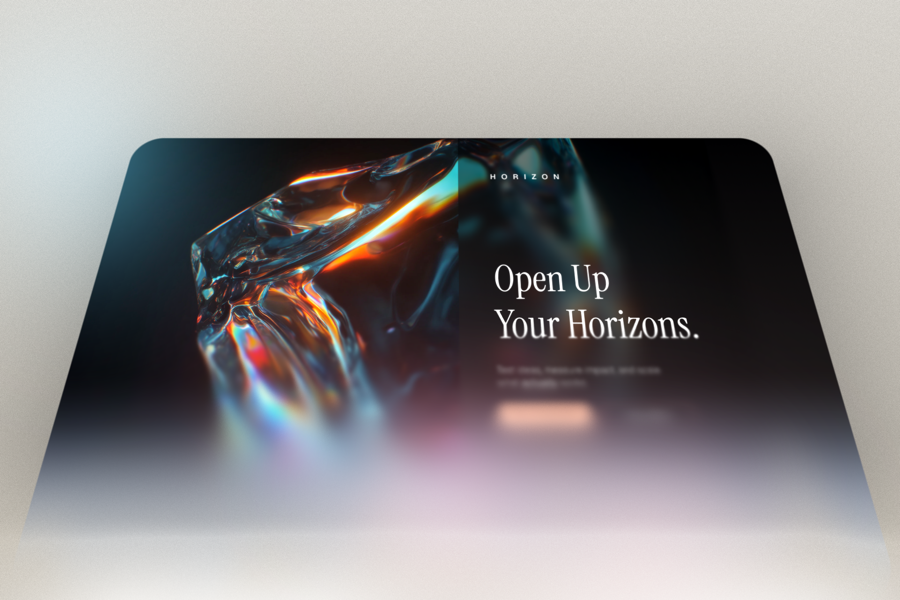 MeltMelting downward into light, grain over everything, soft blobs drifting through.
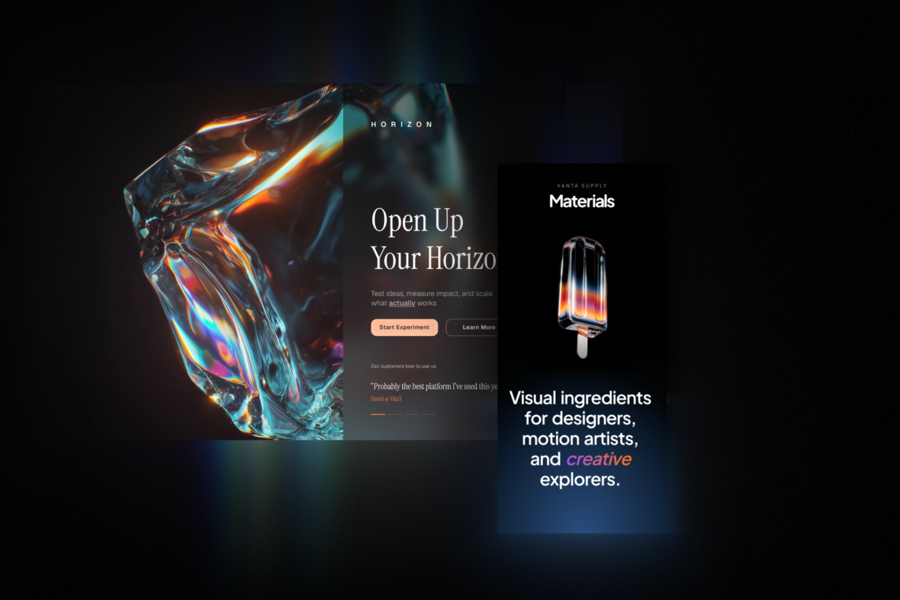 DuoTwo shots side by side on a dark cluster, each trailing a chromatic streak.
What it can do
Real 3D tilt
Tilt a flat screenshot in true 3D and the focus falls off with it, the way a real lens blurs what leans away from the camera.
Frames, glow & light
Wrap it in a neon or glass frame, glow the edges, or melt one side into light — the shot stops looking pasted onto the page.
Export a PNG
Download a crisp PNG at 1×, 2× or 4×, with a transparent background if you want one — or copy it straight to the clipboard.
3
Shots at once
layer up to three on one canvas…
25
Backgrounds
paper, steel, dusk, fluid, glass…
7
Frame styles
line, border, glass, inset, neon…
4×
Export scale
1×, 2× or 4×; PNG or clipboard…
Free, no signup, no build step. Everything renders in your browser and the PNG is drawn from the same engine you see.
Questions
Is Screenshot Studio free?
Yes, and there is no signup or watermark. You drop in a screenshot, style it, and download the PNG — the tool costs nothing and the result is yours to use in commercial, client or store-listing work. Everything renders in your browser, so nothing is uploaded to a server and there is no account to make or build step to wait on.
How do I make my app store screenshots look good?
Start with the flat grab and give it some depth: tilt it in real 3D so it sits at an angle, let the focus blur fall off with that angle the way a real lens softens what leans away, and set it on one of the built-in backgrounds instead of a bare white rectangle. Then wrap the edge in a glass or neon frame, add a soft glow or drop shadow, and export a crisp PNG at 1×, 2× or 4× — the size a store listing or landing page needs. It styles the screenshot itself rather than dropping it inside a phone body, so it is for making the shot look designed, not for adding device chrome.
Can I put a frame around the screenshot?
Yes — the tool has a set of edge frames: a thin line, a solid border, light or dark glass, an inset bevel, or a bright neon edge, each in a colour you choose. You can round the corners underneath, set the frame's width and opacity, and add a glow that washes off the edge onto the shot. They are border-and-light treatments that lift the screenshot off the page, rather than a phone or browser shell around it.
Is the 3D tilt real, or just a skew?
It is real 3D. The shot sits on a plane inside a proper perspective camera, so when you tilt it the near edge grows and the far edge shrinks, and the focus blur follows the depth — the part leaning away goes soft while the near corner stays sharp. A flat CSS skew cannot do that; it slides the corners around but keeps everything the same size and equally sharp.
Can I download a transparent PNG?
Yes. Turn the background off and the export gives you a PNG with nothing behind the shot — just the tilted, framed screenshot on transparency — so it drops straight onto a slide, a page or another mockup. You pick the size before it saves (1×, 2× or 4×), and you can copy it to the clipboard instead of downloading if you would rather paste it somewhere directly.
Can I use my own background?
Yes. Pick from the 25 ready-made backgrounds — dithered gradients and pictures — set any solid colour, drop the background out to transparency, or upload your own image to sit behind the shot. Whatever you choose, you can blur it, dim it, scale it and shift it around so the screenshot stays the thing your eye lands on.
Does it work on phones, and with a keyboard?
Yes to both. On a touch screen you drag or pinch the shot to move and size it; with a keyboard, the controls take focus and respond once you tab to them. It also reads the system reduced-motion setting and holds still for anyone who has asked their device to cut animation, so nothing moves that should not.